


Welcome to the Pilot Group Review
Thank you for participating in the pilot test for Heartland Publications. This guide will walk you through three key scenarios for accessing the Student Writing Journal and the Heart.Paper.Pencil. curriculum in their private, secure, and read-only online versions using a desktop or laptop.
What We'll Cover
Attempting to access a publication without a subscription
Accessing a publication where you are subscribed
Copying images from publications to Google Docs
Before You Begin
Please ensure you have the following ready before starting the session:
Required Items
Keep your desktop or Laptop ready: You will be accessing the publications from a web browser so make sure to have this ready.
Use a modern web browser (Chrome or Safari)
Ensure you have a stable internet connection
Close any unnecessary browser tabs to ensure optimal performance
Google Account Credentials: Have your Google email and password ready. You will need to sign in during the testing process.
Google Meet Access & Screen Sharing: Join the Google Meet session using the link provided in your calendar invitation. Be prepared to share your screen so the facilitator can observe your testing experience. This enables the facilitators Paul & Brian to observe your experience. Make sure you share the entire screen because sharing part sometimes would hide popups and other functions that happen on browser - Watch a tutorial on how to screenshare entire screen
Feel free to provide feedback on any issues or suggestions as you go. Ask questions if anything is unclear
Let’s Begin
Scenario 1: Accessing Without a Subscription
In this scenario, you will attempt to access a publication journal where you do not have an active subscription.
Step-by-Step Instructions
- Open the Unsubscribed Publication Link
Let's assume a student got the link to a "Heartland Student Writing Journal" but the teacher has not give subscription to him for this publication. So open this link in your browser.
https://site-1876.pub.stage.edulibra.com/ - View the Main Page
When you access the link, you will land on the main page of the publication.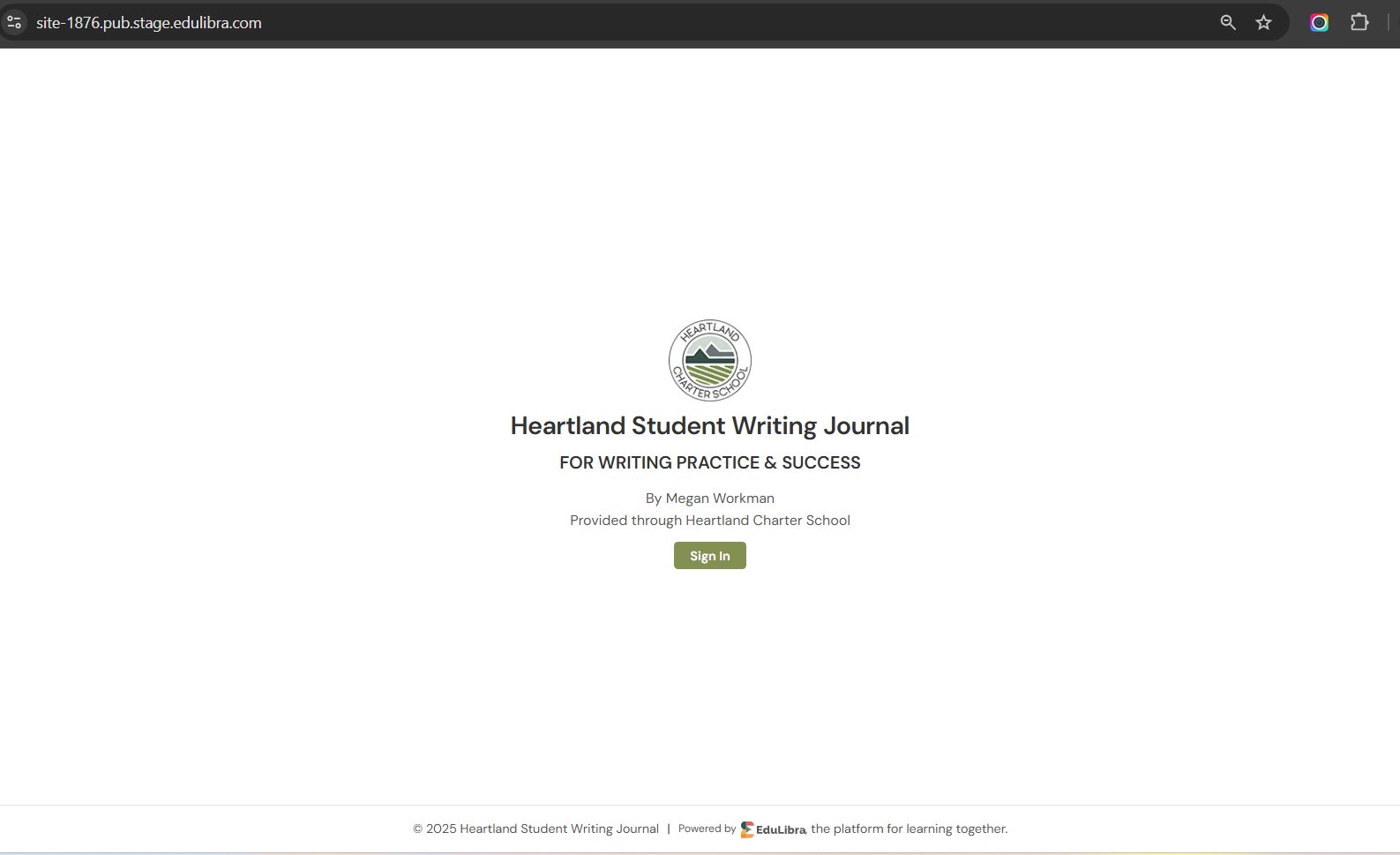
- Click Sign In
Click the "Sign In" button to attempt to gain access. - Complete Google Authentication
You will be taken through the same Google authentication process as before. - Observe Access Restriction
After completing authentication, you will land on a page that does not allow you to access the publication content. You will be able to see the publication homepage but will not be able to navigate to any pages within it.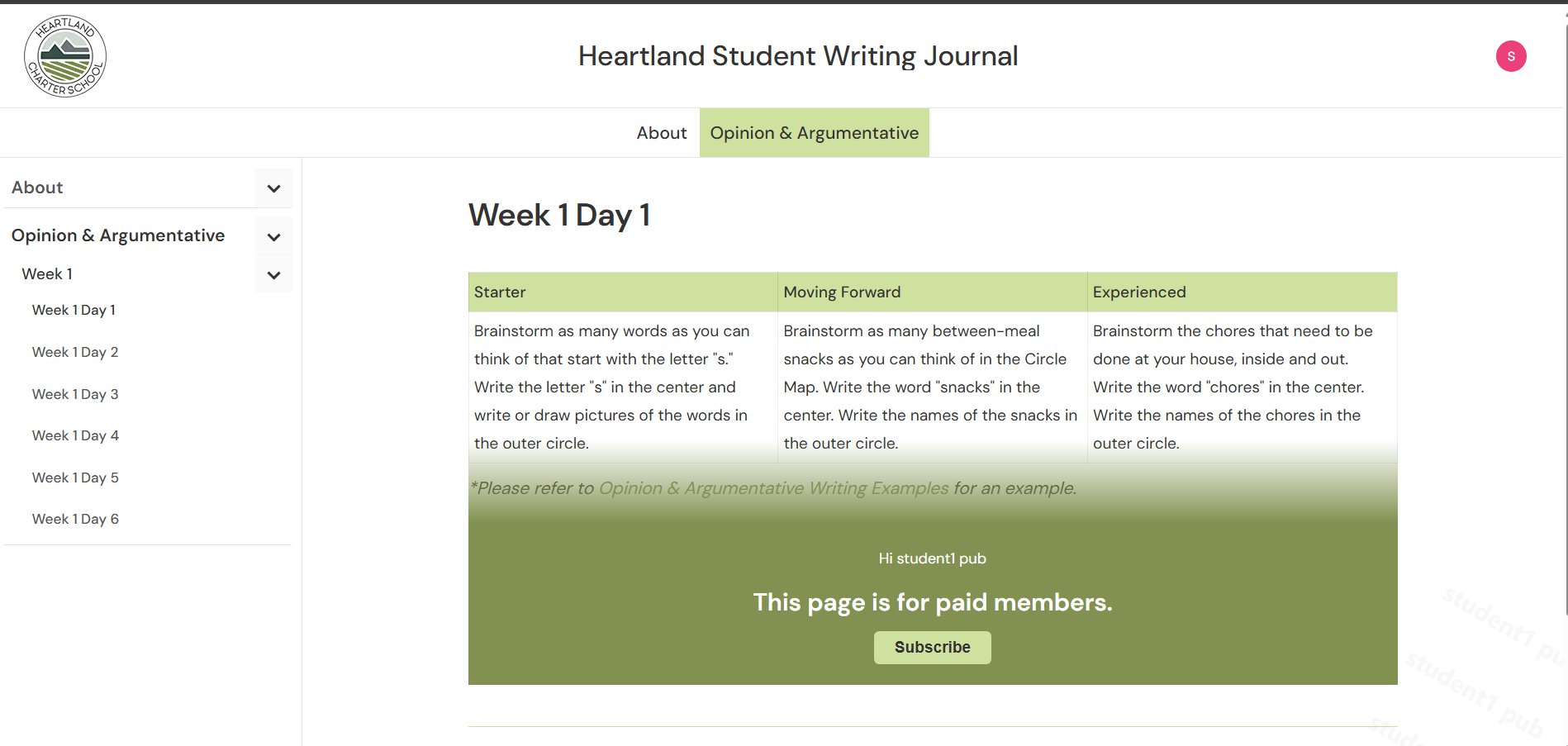
- Test the Subscribe Button
If you click the "Subscribe" button, a popup will appear indicating to reach out to teacher or school for help.

Expected Result
Users without a subscription will not be able to access the publication content and will see appropriate restriction messages.
Scenario 2: Student Accessing a Subscribed Publication
In this scenario, you will access a publication journal where your teacher or school administrator has already subscribed to you.
Step-by-Step Instructions
Open the Publication Link
For pilot testing, click the following URL: https://site-1876.pub.stage.edulibra.com/
View the Landing Page
You will be directed to a landing page displaying the name of the publication journal that has been shared with you.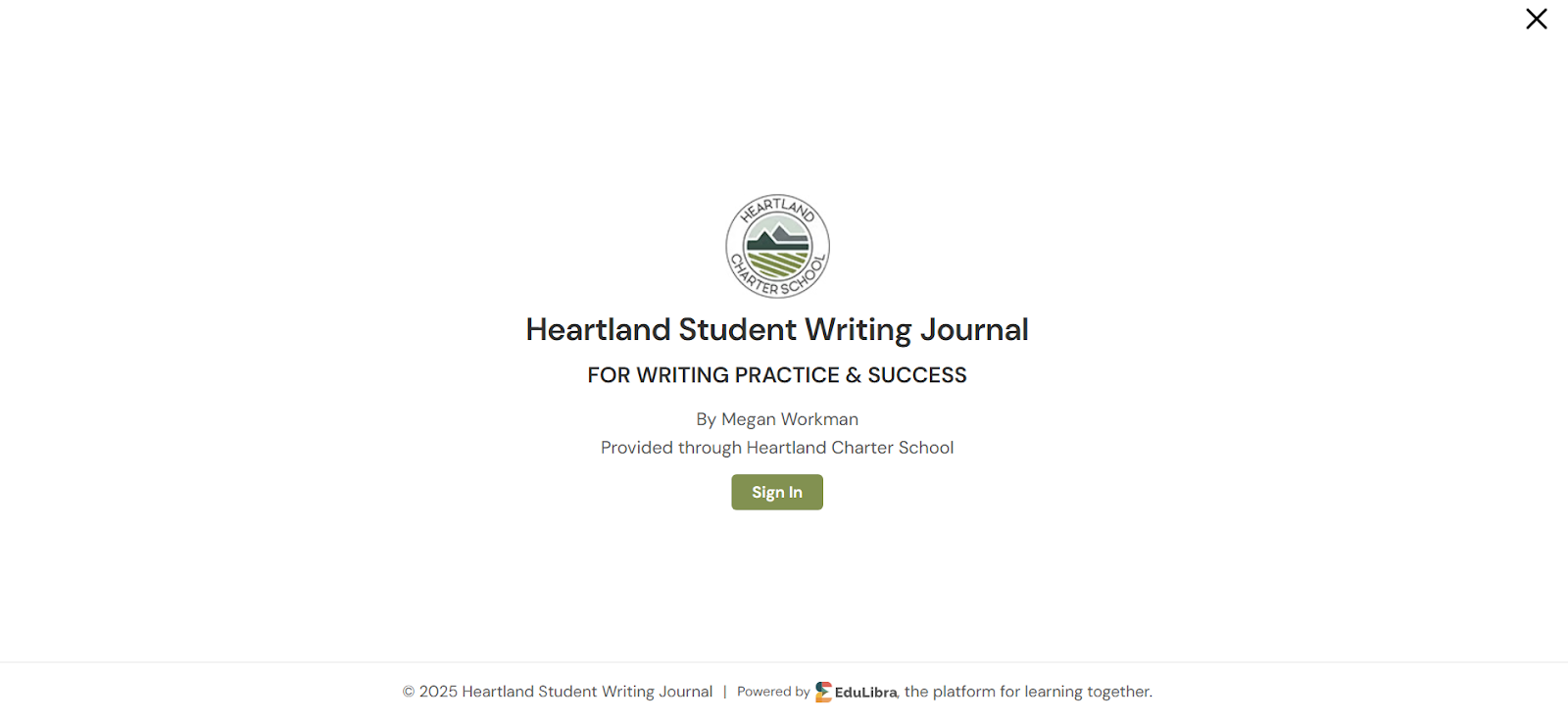
Click Sign In
Locate and click the "Sign In" button on the landing page.
Sign In with Google
You will be redirected to a sign-in page. Select the Google sign-in method.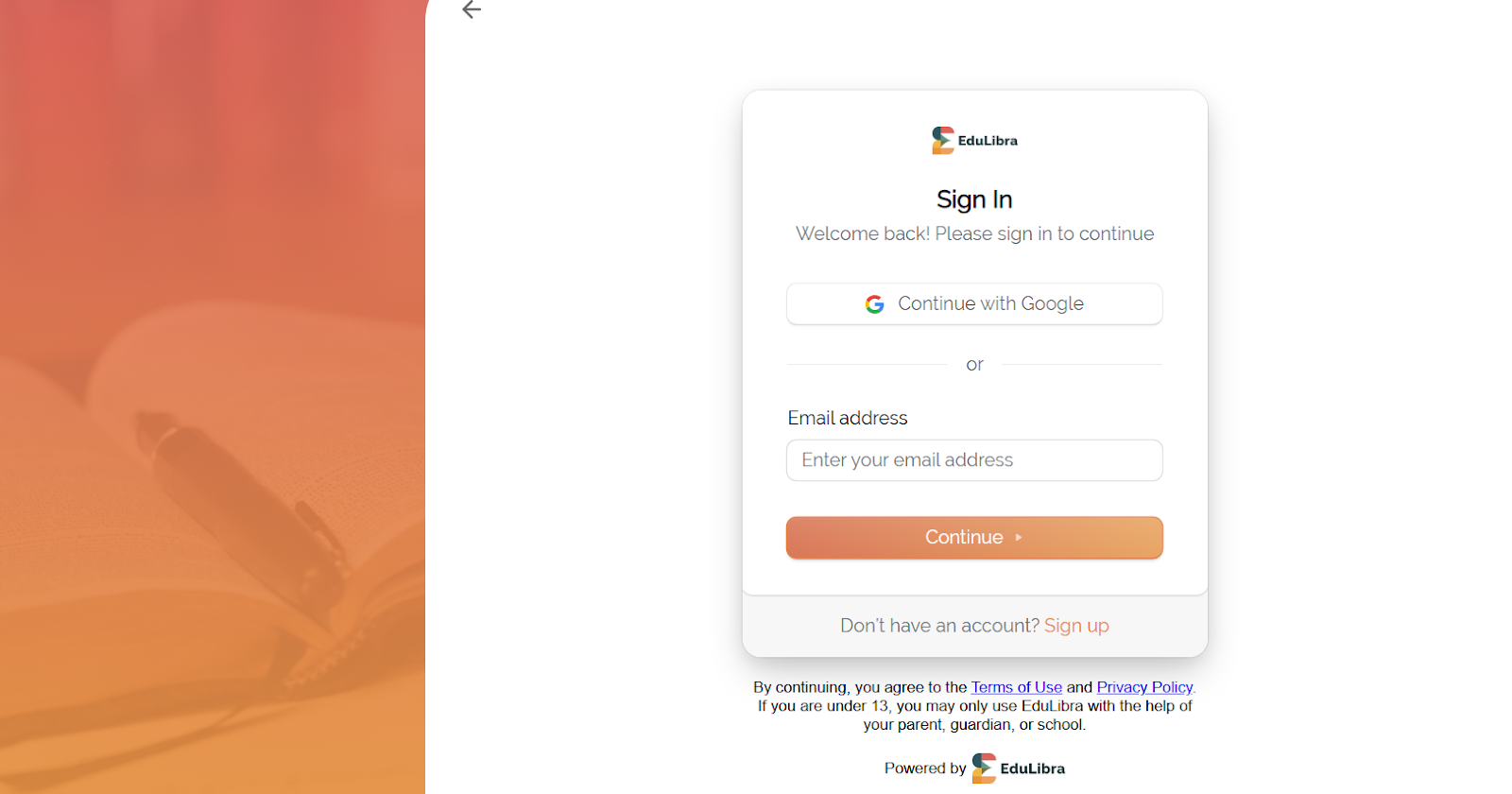
Complete Google Authentication
Follow the Google authentication flow by entering your credentials and completing any necessary verification steps.
Access the Publication Homepage
After successful authentication & login, you should land on the publication homepage where you can access all available content. You should be able to see your profile icon as highlighted in screen below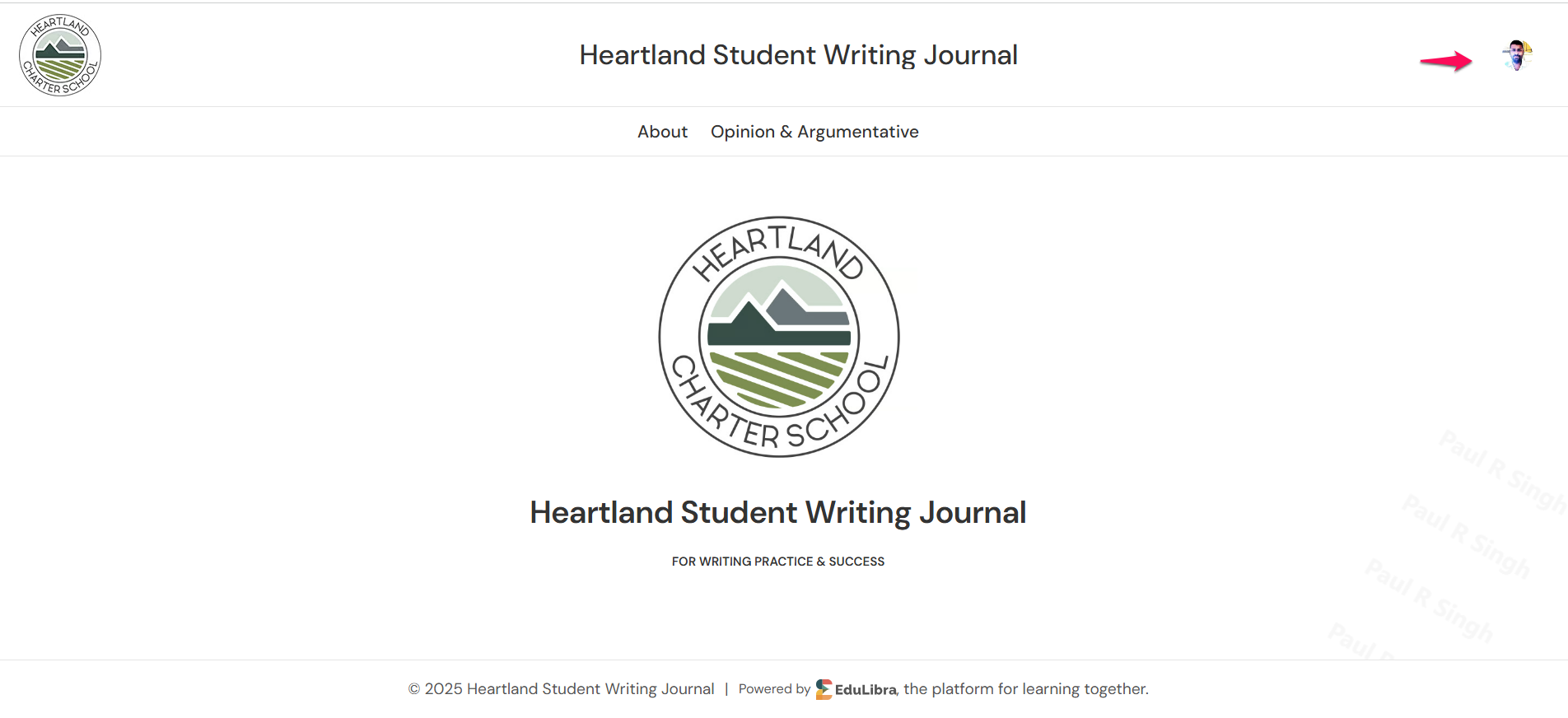
Scenario 3: Copying Images to Google Docs
This scenario demonstrates how to safely copy images from publications to Google Docs while maintaining content protection. The publications do not allow direct copying of text. You cannot download images directly from the publication. A secure method is provided for copying images for educational use
Step-by-Step Instructions
Navigate to a Page with Images
Go to the following test page:
https://site-1876.pub.stage.edulibra.com/opinion-argumentative/week-1/week-1-day-1
Hover Over the Image
Move your mouse cursor over the image you wish to copy. A copy option should appear.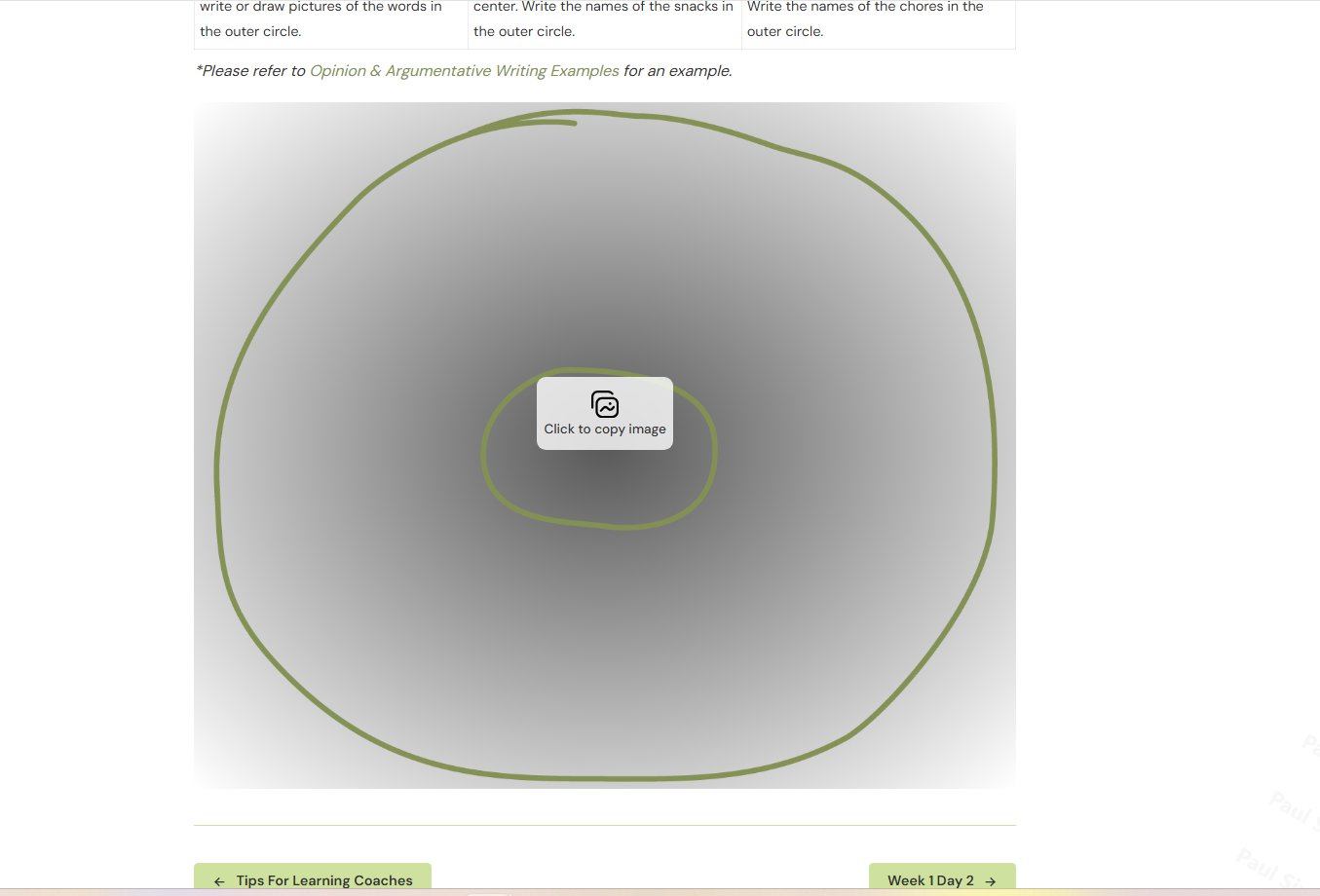
Click the copy icon that appears when hovering over the image to copy it the image.
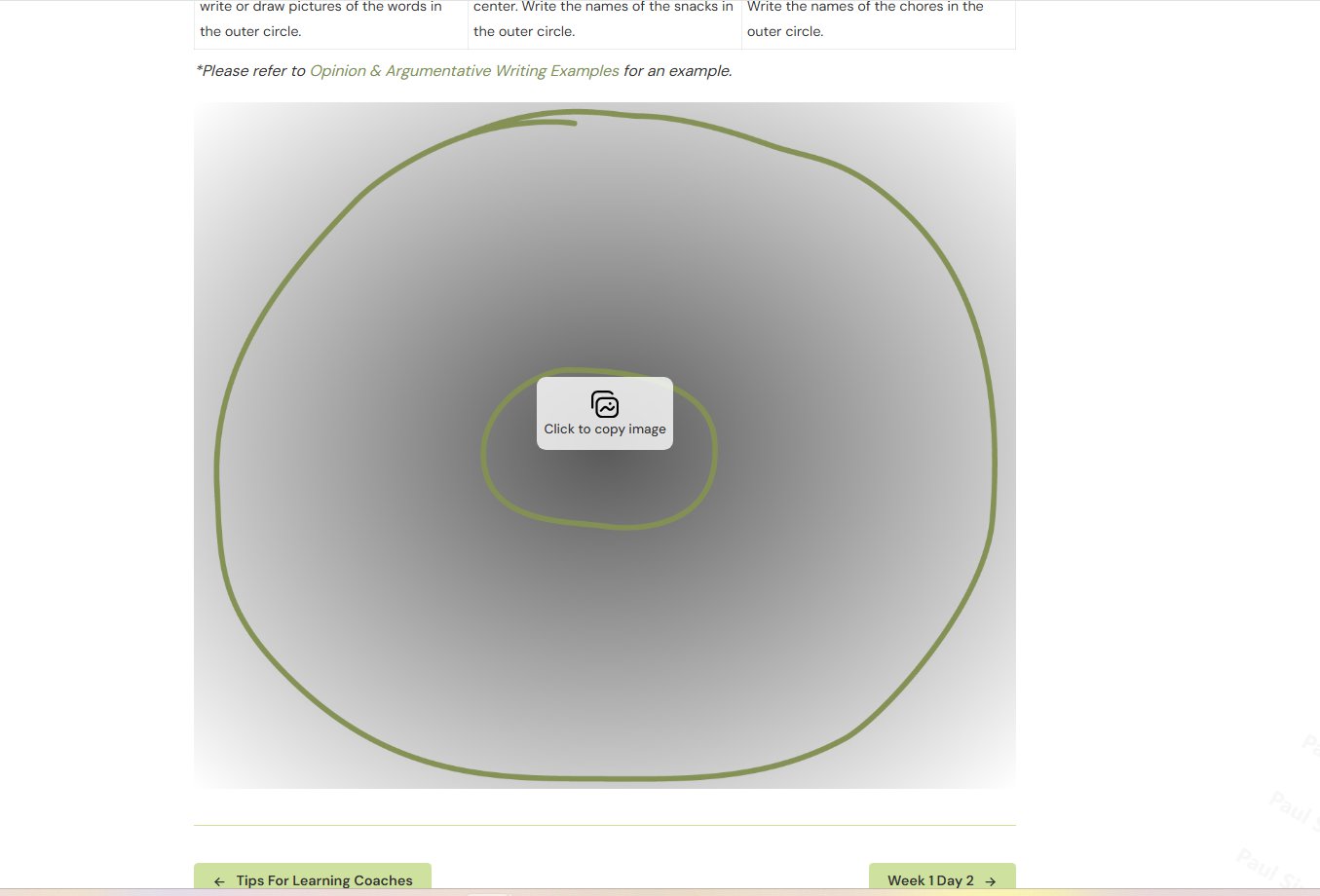
Now click "Open Google Docs" button to paste the image in Google Doc
Google Docs Will Open Automatically

If you are not already logged into your Google account, you may be prompted to sign in. A blank Google document will open with your name and the name of the page you copied from.
Paste the Image
Paste the image into your Google Doc using:
Windows: Ctrl + V
Mac: Cmd + V
Right-click method: Right-click in the document and select "Paste"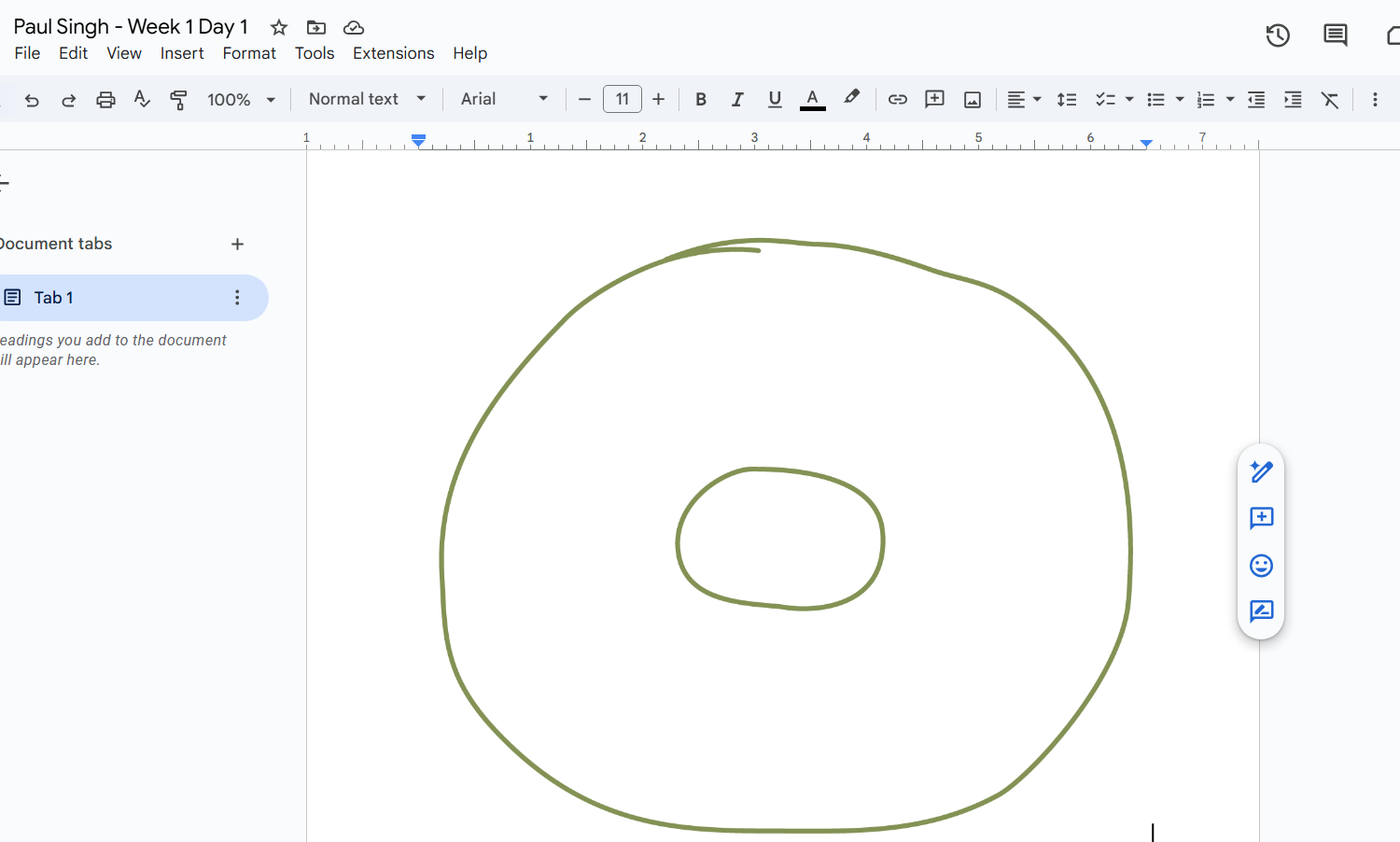
Expected Result
The image should successfully paste into your Google Doc, allowing you to use it for students while respecting content protection measures.
Thank You
Thank you for participating in this pilot testing session. Your feedback is invaluable in helping us improve the Publications experience.